![FullExtremo - Hacks Premium [VIP]](https://www.fullextremo.com/uploads/set_resources_367/609780353_6d538d11ecfced46f459ee300b5e80ec_logofullextremo_f2f447.png)
![FullExtremo - Hacks Premium [VIP]](https://www.fullextremo.com/uploads/set_resources_367/721743795_6d538d11ecfced46f459ee300b5e80ec_logofullextremo_2de2ba.png)
![FullExtremo - Hacks Premium [VIP]](https://www.fullextremo.com/uploads/set_resources_367/680707614_6d538d11ecfced46f459ee300b5e80ec_logofullextremo_bec9c4.png)
![FullExtremo - Hacks Premium [VIP]](https://www.fullextremo.com/uploads/set_resources_367/537468988_6d538d11ecfced46f459ee300b5e80ec_logofullextremo_318ec2.png)
[ElitePro] Operation7 Softnyx
🎮 Descripción del Programa
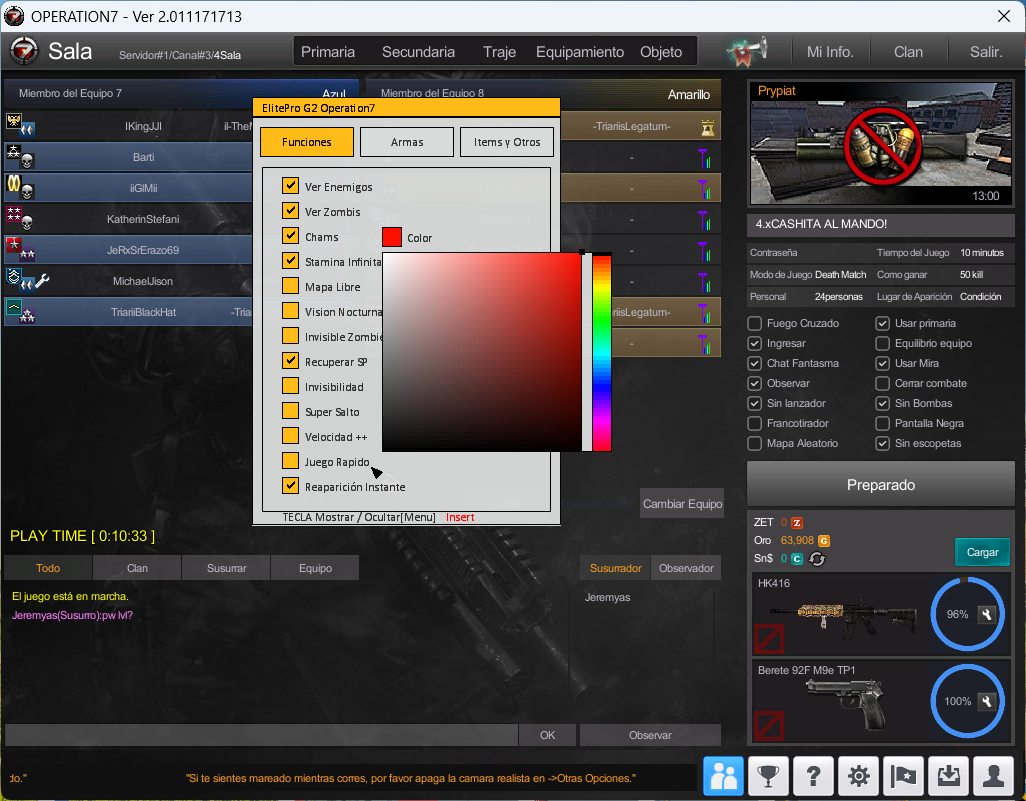
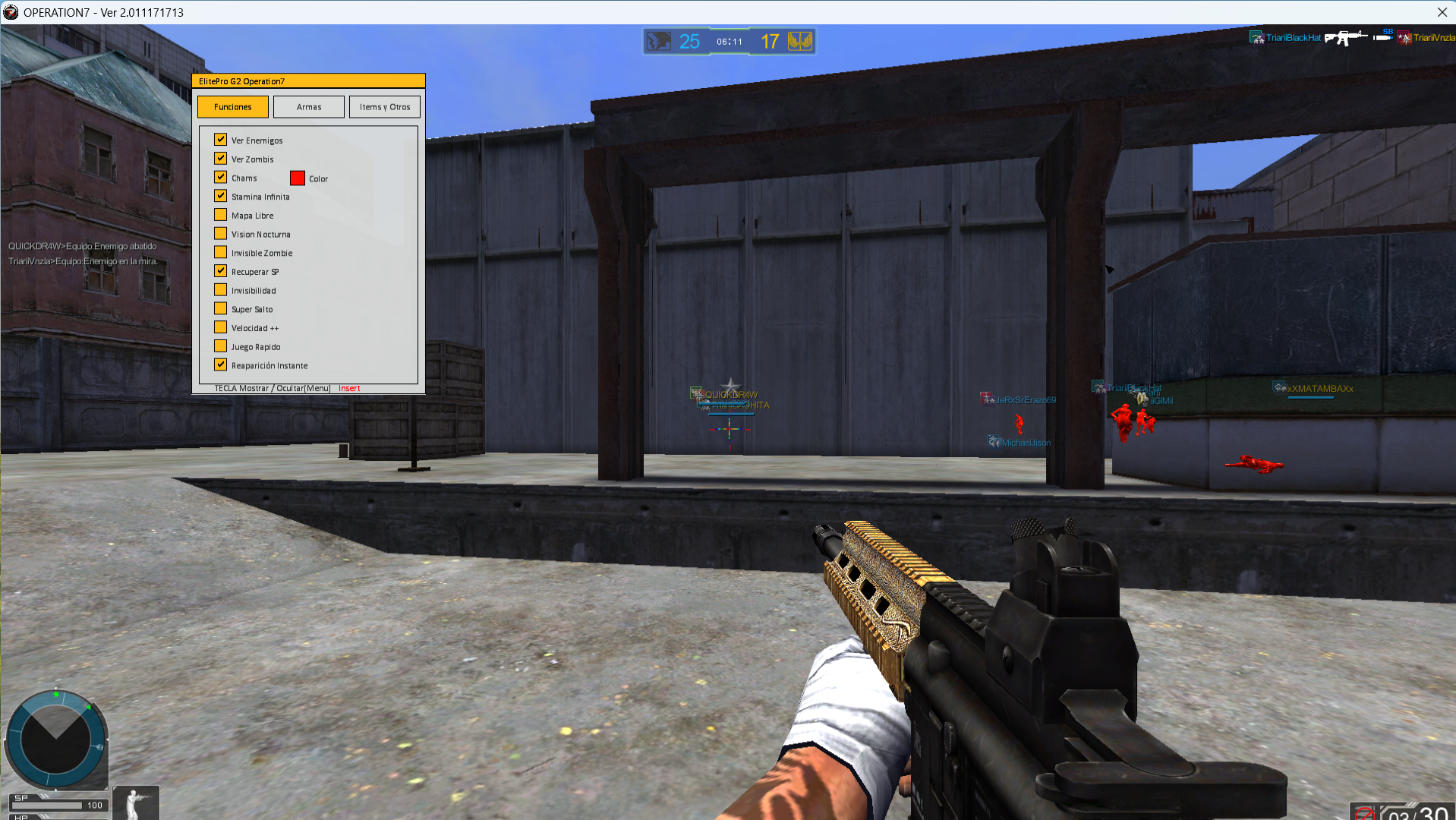
ElitePro para Operation7 es una plataforma premium desarrollada para ofrecer un panel de control avanzado, una interfaz gráfica optimizada y un sistema modular profesional, diseñado para proporcionar un rendimiento estable, rápido y totalmente personalizable.
El software integra un menú Overlay en tiempo real, un sistema de teclas rápidas personalizables, soporte para múltiples idiomas y una arquitectura modular, permitiendo administrar configuraciones, perfiles y módulos desde una interfaz gamer moderna, intuitiva y responsiva.
Características
🎮 Versiones Compatibles de Operation7
ElitePro es compatible con:
✔ 🌎 Operation7 Latino
🖥️ Sistemas Operativos Compatibles
ElitePro es compatible con:
✔ 🪟 Windows 8 / 8.1 (x86 / x64)
✔ 🪟 Windows 10 (x86 / x64)
✔ 🪟 Windows 11 (x86 / x64)
Reseñas de productos
No hay reseñas para mostrar.